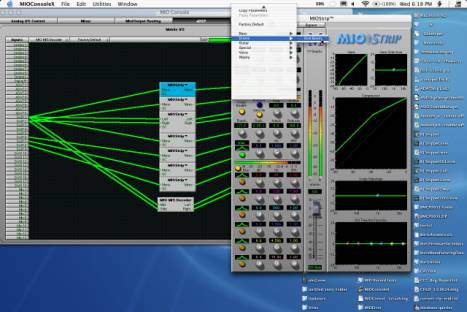
Metric Halo is proud to announce that the +DSP system for
Mobile I/O has been released.
This version of MIOConsole adds a new Panel to the Console
window. The main Panels are now:
1) Analog I/O Control
2) Mixer
3) Mix/Output Routing
4) +DSP
The functions of 1 and 2 have not changed. The
"Mix/Output Routing" Panel (3) now has Process busses available in
the Patchbay router, and we have added (4) the +DSP Panel.
The +DSP Panel is the heart of the plug-in system in Mobile
I/O:
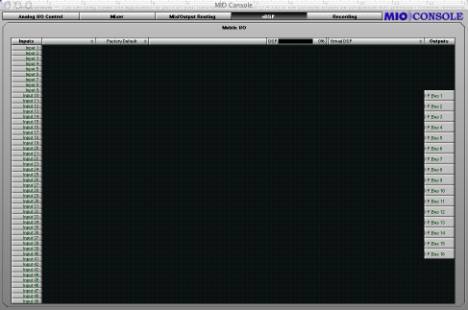
The +DSP Panel includes a number of new elements. The large
dark area with the grid is the "Graph area". To the left of the Graph
area are the input ports from the primary DSP (the primary DSP is the DSP that
has been providing the mixing, metering and routing services on Mobile I/O
since the beginning). On the right are the output process bus ports that return
the processed signal to the primary DSP. Along the top of the Graph area are a
number of controls that you use to configure the DSP signal processing. Right
next to the "Inputs" label is the Plug-in pop-up menu. Next to that
is the Patch library popup menu. The header then has a spacer, followed by a
DSP load meter. Next to the DSP load meter is a DSP popup menu. These are all
described below.
DSP
pop-up menu
We'll start with the DSP pop-up menu. This lists the
available DSP's in the system. There should be one for each +DSP box you have
attached to your computer. They will be listed by box type, serial number, and
DSP number. All the +DSP units have one available DSP (DSP #1). The software is
capable of addressing any number of boxes, so if you have more than one
2882+DSP, you can work with multiple DSP graphs.
Plug-in pop-up
menu
The Plug-in pop-up menu contains all of the available
instantiable plug-ins. When you select a plug-in from this menu, a new instance
is created on the selected DSP, and you may drag the instance to a convenient
location in the Graph area.
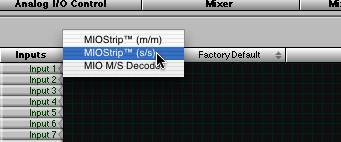
Selecting a new
instance from the Plug-in Menu
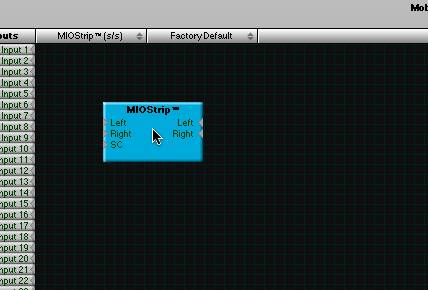
Positioning the
new instance in the Graph
Once you have added the Plug-ins you want to use, you can
wire them up. To make connections, click on a port (one of the small gray
triangles next to the port name), and then drag the connection to the target.
When you have made a valid connection, the connection line will switch from
Gray to Green. You can make as many mults as you like of a signal source but
only one connection can be made to a processor input or process bus port. If
you make a new connection to an input that already has a connection, the old
connection will be automatically disconnected. To remove a connection without
establishing a new one, <control>-click on the input port to which the
connection is made.
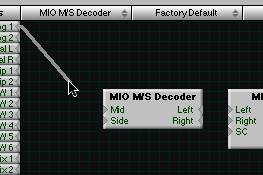
Starting a
connection
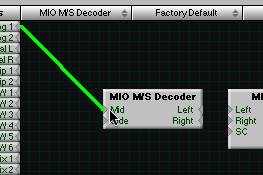
Completing the
connection
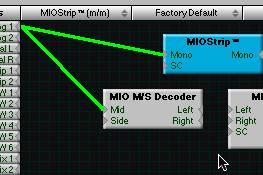
Making a mult
After everything is placed and wired up, you will need to
ensure that you have routed the output of your signal processors to the
appropriate process bus on the output side of the graph. When you are done, you
will have a complete graph. For example:
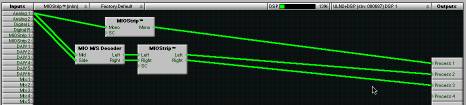
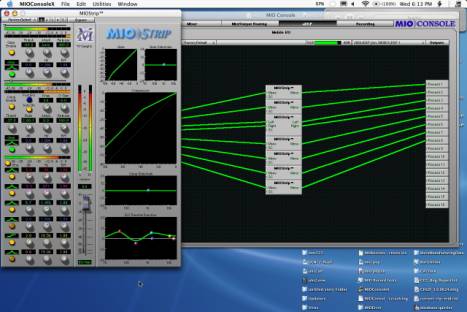
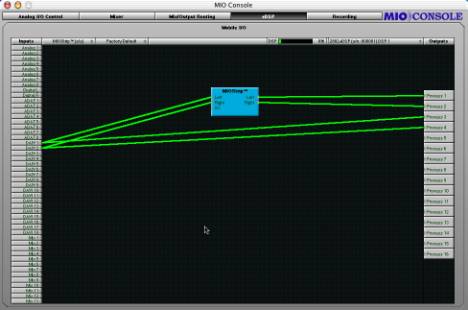
A complete +DSP
Graph.
This graph shows the routing of Analog 1+2 into a M/S
Decoder, and mults Analog 1 to a Mono MIOStrip. The output of the M/S Decoder
is routed into the inputs of a Stereo MIOStrip. The outputs of the MIOStrips
are sent to Process Busses 1, 2, and 3. It is important to connect both the
input and output of a plug-in if you want to use it. The +DSP system is very
intelligent about scheduling resources, and will only run plug-ins when they
have at least one input and one output connected.
The graph is continuously modifiable. You can drag the
plug-ins around as you like, and you can add new plug-ins, even while you are
processing audio with the existing graph. You can make and break connections as
you please.
There is no routing delay within the plug-in graph. So if
you make mults with different plug-in paths on each side of the mult, the two
paths will remain time-aligned. This allows you to configure parallel
processing paths without the virtually impossible task of time-aligning the
parallel paths. The graph itself has a 16 sample delay from input to output, so
signals routed through the graph get back to the primary DSP 16 samples after
they leave it.
At this point, you will want to be able to control each plug-in's parameters. We will describe the Plug-in UI's below, but, in order to open a plug-in's UI, all you have to do is double click the plug-in in the graph.
Patch
Library Pop-up Menu
The Patch Library pop-up menu allows you to save the
complete state of the plug-in graph. This menu works like all the other Library
popup menus in MIOConsole.
DSP Load
Meter
The DSP Load Meter shows you the current active, measured
load on the DSP that is selected in the DSP pop-up menu. Since the plug-ins in
Mobile I/O are dynamic, this is the best way to determine if you are close to
overloading the DSP. The Plug-ins in Mobile I/O only use the resources they
need to accomplish the job that you have selected with the plug-in settings.
So, if the compressor in MIOStrip is not enabled, it will not use up DSP
cycles. This means that you can instantiate more plug-ins if you do not use all
the features of each instance. The Load Meter shows you the actual dynamic
load, and will vary with the settings of the plug-ins and may vary with the
audio program material (depending on the DSP algorithm; e.g. the compressor
uses more DSP when the signal is above threshold than when it is below
threshold).
Plug-in
UI's
To open the UI for a plug-in, double click the plug-in in
the graph.
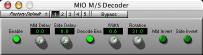
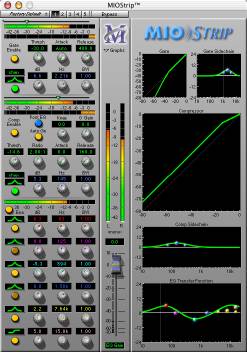
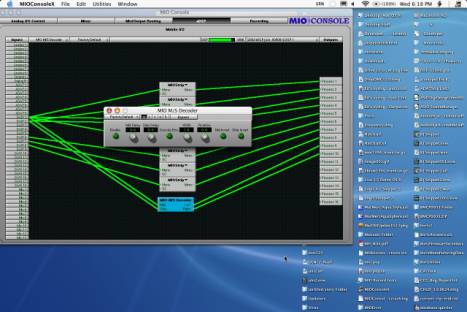
The M/S decoder uses a generic interface -- one that is
automatically created from the parameters in the plug-in. The MIOStrip uses a
custom interface -- one generated by us with a specific layout and special UI
elements. All of the plug-in UI's share the plug-in bar at the top of the
window. This bar provides generic services for managing the state of any
plug-in.

Every plug-in window has a parameter library popup, 5 setup
registers and a master bypass button. The parameter library popup is like all
the other parameter library popups in the console. The parameter library is
automatically shared amongst all instances of a particular plug-in type.
Actually, it is automatically shared amongst all instances of compatible
plug-in types, so MIOStrip Mono and MIOStrip Stereo automatically share preset
libraries.
The 5 setup registers are a unique feature of +DSP. Each
button corresponds to a set of parameters. If the button has not been
activated, the register will be clear, and nothing will happen when you click
on the button. When you click onto another register button, the current plug-in
parameters will be saved into the register button. This allows you to make
multiple alternate setups, and instantly switch between the setups. Sort of an
A/B/C/D/E switch.
Finally, the bypass button in the header bar is a master
bypass for all processing in the plug-in.
The processing in MIOStrip is a completely new set of
algorithms. While we worked to stay within the original spirit of ChannelStrip,
the algorithms are radically different. We believe that you are really going to
enjoy the sounds you can get out of these processors. The Compressor,
especially, is a dramatically different beast. While you can still get the
kinds of sounds that you could from ChannelStrip (for those of you who loved
that aspect of ChannelStrip), you can get many new sounds that ChannelStrip
could not create, and, in particular, you will find that it behaves like a
standard compressor in its controls and behaviors, unlike ChannelStrip (for
those of you who hated that aspect of ChannelStrip).
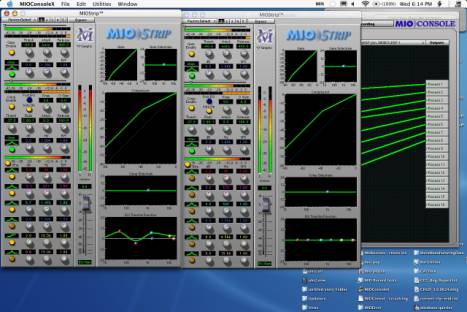
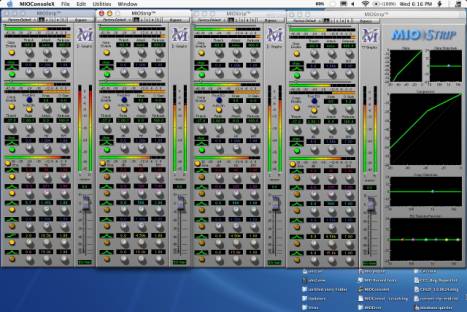
Finally, here is a gallery of configurations: